
Flow AI Video from Image: A First-Frame Workflow
Use Flow AI Video from Image to animate a product, portrait or illustration while keeping the opening composition as a clear visual starting point.
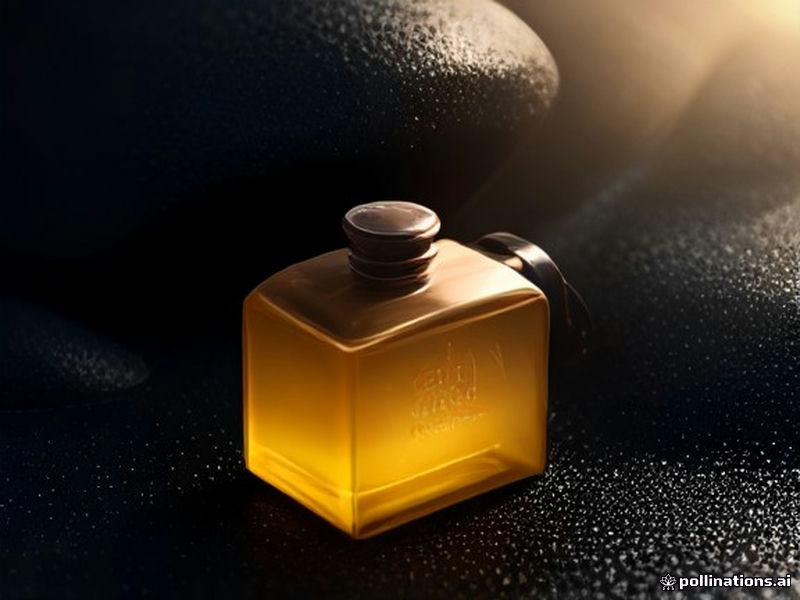
Flow AI Video from Image starts with a first-frame picture instead of an empty canvas. It is a practical way to explore motion for a product shot, portrait, illustration, landscape or app screen while giving the model a defined visual opening.
When to use an image as the starting point
Choose Image to Video when composition or appearance matters before motion begins. A product photo can become a gentle camera orbit. A landscape can gain moving clouds or a slow push-in. An illustration can receive a small gesture or parallax-like camera move. A portrait can be given a restrained expression or head movement, provided you have permission to use the person’s likeness.
Use Text to Video when you are still deciding what the scene should look like. The two modes solve different starting problems: text gives you freedom to explore, while an image gives the first frame a stronger visual constraint.
Prepare a useful first frame
Flow AI Video accepts one JPG, PNG or WebP image up to 5 MB. Use an image you own or are authorized to upload. Avoid private documents and sensitive information. A clean, well-lit image with a clear subject gives you a more understandable baseline than a crowded image with several competing focal points.
Before uploading, decide what must stay stable. For a product, that may be the shape, label and material. For an illustration, it may be the character silhouette and color palette. Your prompt should then describe what changes over time rather than asking the model to redesign the whole image.
Write the motion prompt
Begin with the subject and a small action: “The cream sneaker remains on the pedestal while the camera makes a slow clockwise orbit.” Add one camera direction and a lighting detail if it helps. Keep the movement physically plausible for the selected duration.
Avoid asking for several unrelated actions at once. A product that rotates, changes color, opens, flies through a room and becomes a different object is difficult to evaluate. Try one motion first, then change one prompt detail in the next attempt. The Flow AI Video prompts guide has more examples.
Choose settings and review the quote
After the image is loaded, choose a model that supports Image to Video. The available duration, resolution and aspect ratio depend on that model. A vertical ratio can suit a mobile social clip; a landscape ratio can suit a presentation or product page. Check the credit estimate before you submit, because model and setting changes can alter the cost.
The generator lets you inspect the controls before sign-in. Submitting requires an account and enough total credits. If the provider rejects the task, it fails or times out, reserved credits are restored under the service rules. Completed media and first-frame uploads are stored for 30 days, so download anything you need to retain.
Try Flow AI Video from Image with one clear movement, then compare the result with a text-only version of the same idea. That comparison tells you whether the image constraint is helping the shot you want to make.